| Let's take another look at the ImageReady workspace. In this screen shot the animations palette shows the first frame and how to duplicate it. There are also references to the active layer and the visible layers. | 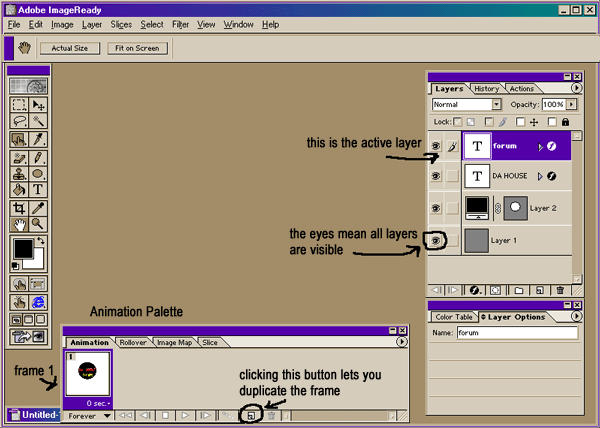
Click for larger view. |
| When creating
animations it is important to remember that each separate movement needs
its very own frame and corresponding layer. If you've ever d/loaded
animated GIFs from the web, and then opened them in ImageReady, you are
already aware of just how many layers and frames it takes to create each
movement or position of movements. This in itself can result in larger
image files sizes: the more frames and layers, the bigger the file
size.
ImageReady makes animation seem easy because the program does much of the work for you. However, we cannot forget that true animation takes a great deal of time, patience, talent, and learning. Let's face it. All those great movies we watch were not created by folks who don't know what they're doing. Here's what the good people at Adobe have to say about animations: An animation is a sequence of images, or frames, that is displayed over time. Each frame varies slightly from the preceding frame, creating the illusion of movement when the frames are viewed in quick succession. Sound difficult? Not really. Once you're familiar with the concept of frames and layers, the rest will fall into place. ADDING FRAMES Adding frames is the first step in creating an animation. If you have an image open in ImageReady, the Animation palette displays the image as the first frame in a new animation. Each frame you add starts as a duplicate of the preceding frame. You then make changes to each frame using the layers palette.
When we duplicated the first frame, the image contained within was copied into the next frame. In order to create a totally new and empty frame, we first created another layer (layer 2) and linked it to frame 2. Next we unlinked layer 2 to frame 1, thereby creating both a new empty layer and new empty frame. You can do this by clicking the "eye" to the left of the layer. When the eye is visible so is the layer. When the eye is not visible, neither is that layer. Note: Always create and edit frames in Original view. While you can view frames in an optimized view, the editing options are very limited. Before you can work with a frame, you must select it as the current frame. The contents of the current frame appear in the document window. You can select multiple frames to edit them or apply commands to them as a group. When multiple frames are selected, only the current frame appears in the document window.In the animation palette, the current frame is indicated by a narrow border (inside the shaded selection highlight) around the frame thumbnail. Selected frames are indicated by a shaded highlight around the frame thumbnails. To select the current frame:
To select multiple frames:
|
|
| Back to beginning of tutorials... | Continued on next page... |

