Da House Graphic Tutorials
WORKING WITH GRAPHICS...
It's important when working with graphics to
remember to keep your image files small. That's not to say "Keep all your
images as tiny as possible", but rather keep their file sizes small. This
helps to decrease d/load time, and will ensure fickle visitors to your web site
do not become impatient and move on before all your hard work can be displayed.
Keeping image file sizes small is not as
difficult as it sounds. All current versions of Adobe PhotoShop and ImageReady
come complete with web capabilities, and are both capable of optimizing images
to a compressed size as small as is possible. By learning how to work with a
layered image, and then "merging" those layers into one, you can
easily optimize file sizes with a simple mouse click.
DIFFERENT GRAPHIC FORMATS
Although graphic images can be found in several
formats, there are 2 main image formats currently in use on the web: GIF and
JPEG (JPG). JPGs are mainly used for photographic imagery, while GIFs are used
for computer graphics, such as those animated images we're all so fond off.
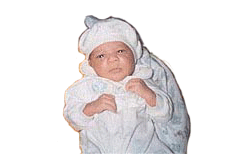
| The JPEG format supports 24-bit
color and preserves the broad range and subtle variations in brightness and hue
found in photographs and other continuous-toned images. JPEG is supported by
most browsers. |
 |
| JPEG compresses file size by
selectively discarding data. Because it discards data, JPEG compression is
referred to as lossy. A higher quality setting results in less data being
discarded, but the JPEG compression method can degrade sharp detail in an image,
particularly in images containing type or vector art. |
The JPEG format does not support transparency.
When you save an image as a JPEG file, transparent pixels are filled with the
Matte color, as specified in the Optimize palette. If you know the background
color of the Web page where you will place the image, you can match the Matte
color to the Web page background color to simulate the effect of background
transparency. If your image contains transparency and you do not know the
Web page background color, or if the background will be a pattern, you should
use a format that supports transparency, such as GIF.
| The GIF format uses 8-bit color
and efficiently compresses solid areas of color while preserving sharp detail,
such as that in line art, logos, or illustrations with type. You also use the
GIF format to create animated images. GIF is supported by most browsers. |
 |
| The GIF format uses LZW
compression, which is a lossless compression method. However, because GIF files
are limited to 256 colors, optimizing an original 24-bit image as an 8-bit GIF
can result in the loss of color information. In addition, Photoshop and
ImageReady allow you to apply lossy compression to a GIF file. Using the Lossy
option yields significantly smaller files by sacrificing some image quality |
You can reduce the number of colors in a GIF
image and choose options to control the way colors dither in the application or
in a browser. GIF supports background transparency and background matting, in
which you blend the edges of the image with a Web page background color.
When it comes to designing and creating graphics,
like all good things that take time, patience is a true virtue. However,
frustration is more often than not your closest companion.
| Back to
beginning of tutorial... |
Continued on next
page.., |

Last revised February 28, 2002
Problems or comments concerning
this website? Email webmistress.